Topic: Introduction to Advanced Word Processing Duration: 1 Week Objective: Learners will explore advanced formatting tools in Microsoft Word, enabling them to create professional-looking documents.
🎯 Learning Outcomes:
Format text and paragraphs to suit various layout requirements.
Apply consistent styling using built-in or custom styles.
Position and format images for professional document design.
1. Understanding the Word Interface (Recap)
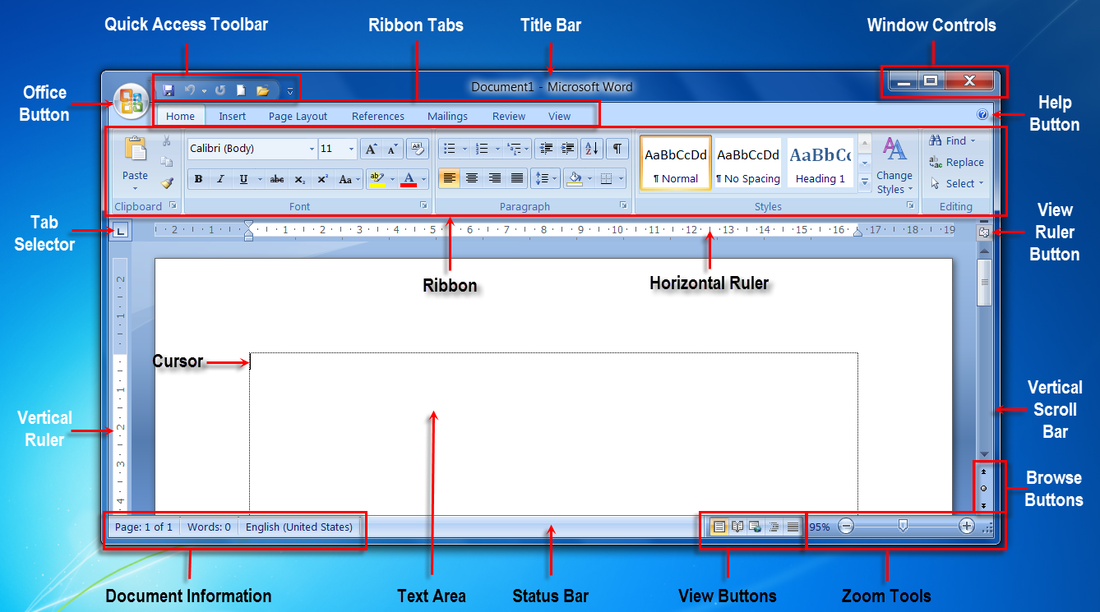
Before diving into formatting, it’s important to understand the layout of Microsoft Word:
Ribbon: This is the toolbar at the top of the window, divided into tabs (Home, Insert, Layout, etc.).
Quick Access Toolbar: Contains commonly used commands like Save, Undo, and Redo.
Workspace: The blank page where you type your content.
Status Bar: Found at the bottom, showing page numbers, word count, and view options.
2. Paragraph and Character Formatting
Character Formatting refers to changing the appearance of individual letters or words: -Font type, font size, bold, italic, and underline -Font color and highlighting
Paragraph Formatting involves: -Alignment: Left, Center, Right, and Justify -Spacing before/after paragraphs -Indentation
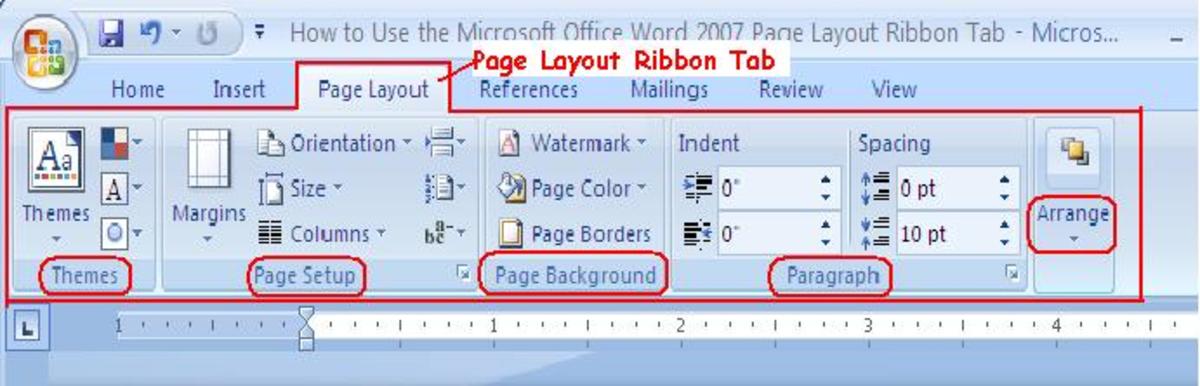
3. Page Layout: Margins, Orientation, Size
➤
Margins: The space around your document (normal, narrow, wide, custom)
➤
Orientation: Portrait (vertical) or Landscape (horizontal)
➤
Paper Size: Usually A4 or Letter for school assignments
4. Line Spacing and Indentation
Line Spacing: Controls how much vertical space is between lines (e.g., 1.0, 1.5, 2.0) Indentation: First line indent: Begins only the first line of a paragraph further in Hanging indent: Every line except the first is indented
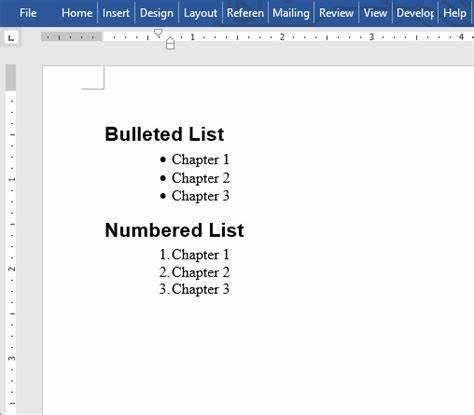
Used to organize content in a readable format:
5. Bullets and Numbering
Bulleted lists: ✓ Good for unordered items
Numbered lists: 1, 2, 3 – useful for steps or sequences
Topic: Introduction to Spreadsheets: Entering, Formatting, Calculating, and Presenting Data Lesson Objective: To introduce Grade 11 learners to the spreadsheet interface and guide them through entering and formatting data, performing basic calculations, and creating visual representations using charts. The lesson develops both technical and analytical skills for solving real-world data problems using spreadsheet tools.
✅ Lesson Outcomes
By the end of this two-week unit, learners will be able to:
Identify and describe the key components of a spreadsheet interface (e.g., cells, rows, columns, formula bar, sheet tabs).
Enter, edit, and format data accurately in a spreadsheet, applying appropriate fonts, alignments, borders, and number formats.
Apply basic formulas and functions (e.g., =SUM(), =AVERAGE(), =MAX(), =MIN()) to perform calculations on data sets.
Create and customize charts (bar, pie, line) to visually represent data, including adding chart titles and labelling axes.
Sort and filter data to organize and extract meaningful information.
Interpret spreadsheet results and explain how they can inform decision-making in real-life scenarios.
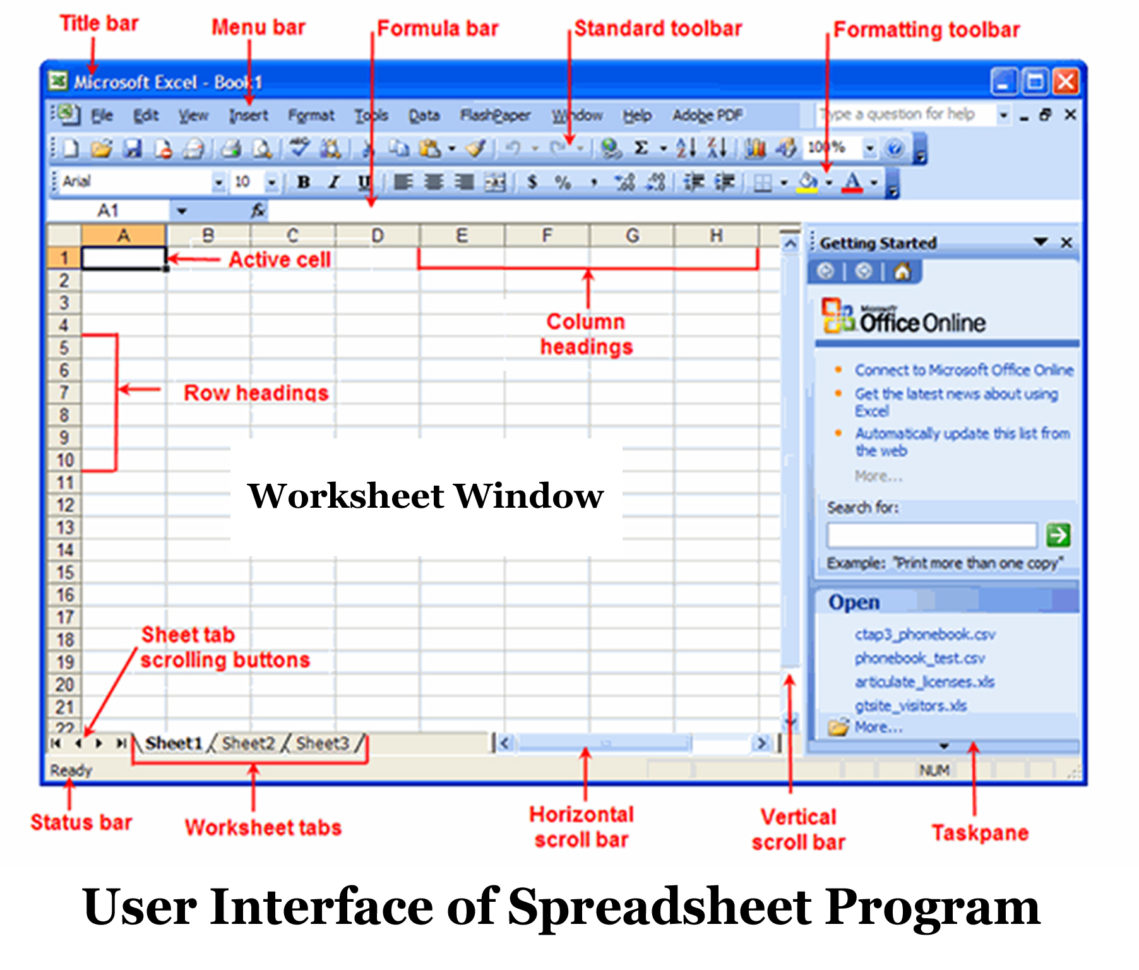
1. The Spreadsheet Interface
A spreadsheet is a digital tool used to organize, analyze, and store data in a tabular form. Microsoft Excel and Google Sheets are the most common spreadsheet programs. Key Components: Rows: Horizontal divisions labeled 1, 2, 3... Columns: Vertical divisions labeled A, B, C... Cells: The individual boxes (e.g., A1) where data is entered. Formula Bar: Used to enter or edit data and formulas. Name Box: Shows the selected cell's reference. Sheet Tabs: Allow you to switch between different sheets in one workbook.
2. Entering & Formatting Data
Data Entry: Click on a cell and begin typing. Use Enter to move down and Tab to move right. Use Autofill to quickly copy patterns (e.g., days of the week). Formatting: Change font style, size, and color for readability. Use alignment tools to position data (left, center, right). Add borders to create clear sections. Use Number Styles:
Currency (R) Percentage (%) Decimal places
Pro Tip:
Use Wrap Text to keep all content visible in a cell and Merge Cells to create headers across multiple columns.
3. Basic Formulas & Functions
Spreadsheets can perform calculations using formulas:
=SUM(A1:A5) ➜ Adds values in A1 to A5
=AVERAGE(B1:B4) ➜ Calculates the mean
=MAX(C1:C6) ➜ Returns the highest value
=MIN(C1:C6) ➜ Returns the lowest value
💡 Formulas must always start with an equals sign (=).
4. Data Visualization with Charts
Transform your data into visuals: Bar Chart: Compare quantities. Line Chart: Show trends over time. Pie Chart: Show proportions of a whole. Don’t forget: Add Chart Title Label Axes (X & Y) Choose appropriate chart types for the data
5. Sorting & Filtering Data
Make your data easier to interpret:
Sorting: Arrange alphabetically (A–Z) or numerically (smallest to largest).
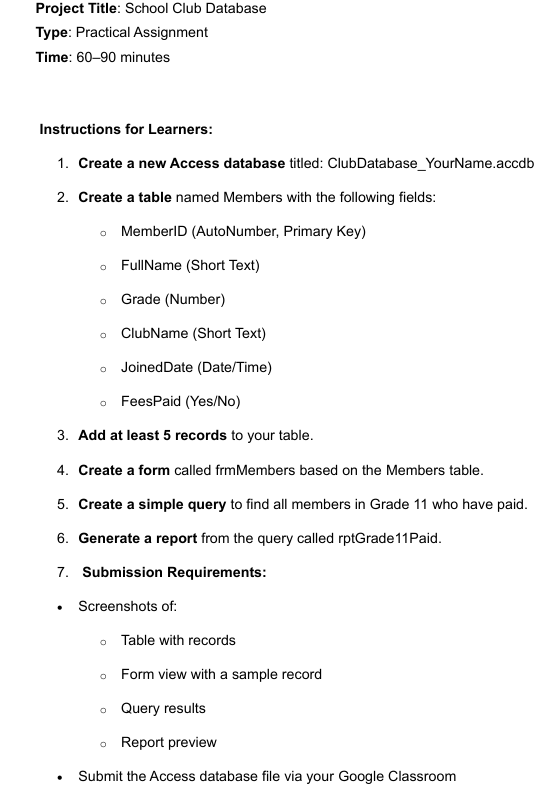
Topic: Introduction to Databases Duration: 2 Weeks The objective of this unit is to equip learners with the skills to design, create, and manage simple databases by understanding and applying key concepts such as tables, fields, records, queries, and forms using appropriate software tools.
Lesson Outcomes
By the end of this unit, learners will be able to:
Understand key database concepts such as tables, records, fields, and data types.
Work with Microsoft Access to create and modify simple databases.
Perform basic data entry, sorting, and filtering.
Design and generate queries to retrieve meaningful information.
Understand the relevance of databases in real-world scenarios.
1. What is a Database?
A database is a collection of data that is organized in a way that makes it easy to access, manage, and update. Think of it like a digital filing cabinet. It allows users to store large amounts of information efficiently and retrieve it quickly when needed.
2. Tables, Fields, and Records
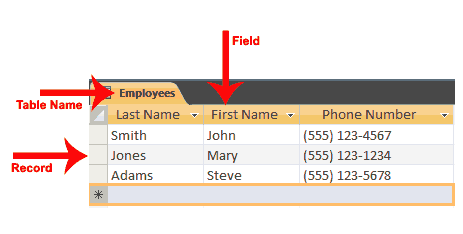
Table: A database is made up of one or more tables. A table contains all the data about a specific topic (e.g., Customers, Products, Learners).
Fields: These are the columns in a table. Each field stores a specific piece of information (e.g., Name, Date of Birth, Student ID).
Records: These are the rows in a table. Each record is one complete set of information across the fields (e.g., one learner's full details).
3. Data Types
Each field must have a data type that defines the kind of data that can be stored:
🅰️Text: Names, Surnames, Categories
🔢Number: Marks, Age
📅Date/Time: Date of Birth, Enrolment Date
✅Yes/No: True or False values (e.g., Has Paid Fees?)
Choosing the correct data type is important to prevent errors and ensure the database works correctly.
4. Sorting and Filtering Data
Sorting: Arranges the data in a specific order (e.g., alphabetical by surname or numerical by mark).
Filtering: Displays only the records that meet certain criteria (e.g., learners with marks above 70%).
Sorting and filtering help you make sense of large amounts of information.
5. Queries
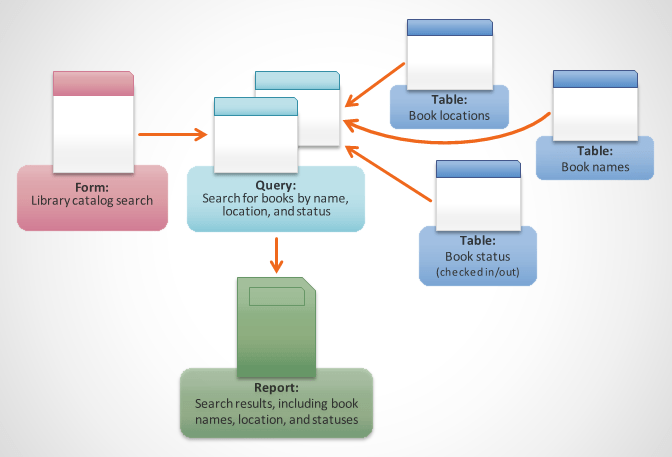
A query allows you to ask questions about the data and get specific results. For example:
Show all learners in Grade 11.
Show learners who scored above 75%
Types of queries:
Select Query: Pulls specific data from one or more tables. Criteria-Based Query: Retrieves data that matches certain conditions.
6. Forms and Reports
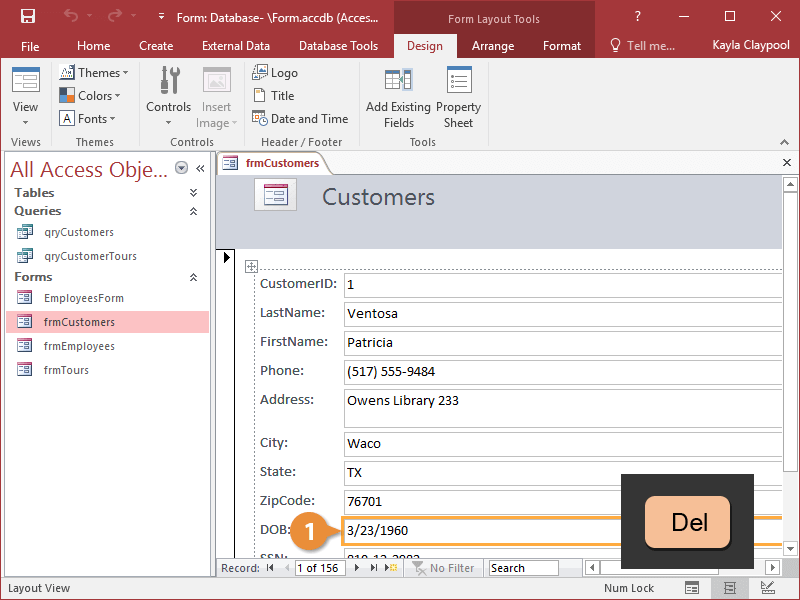
Form: A user-friendly way to enter or view data one record at a time. It helps prevent errors and makes data entry easier.
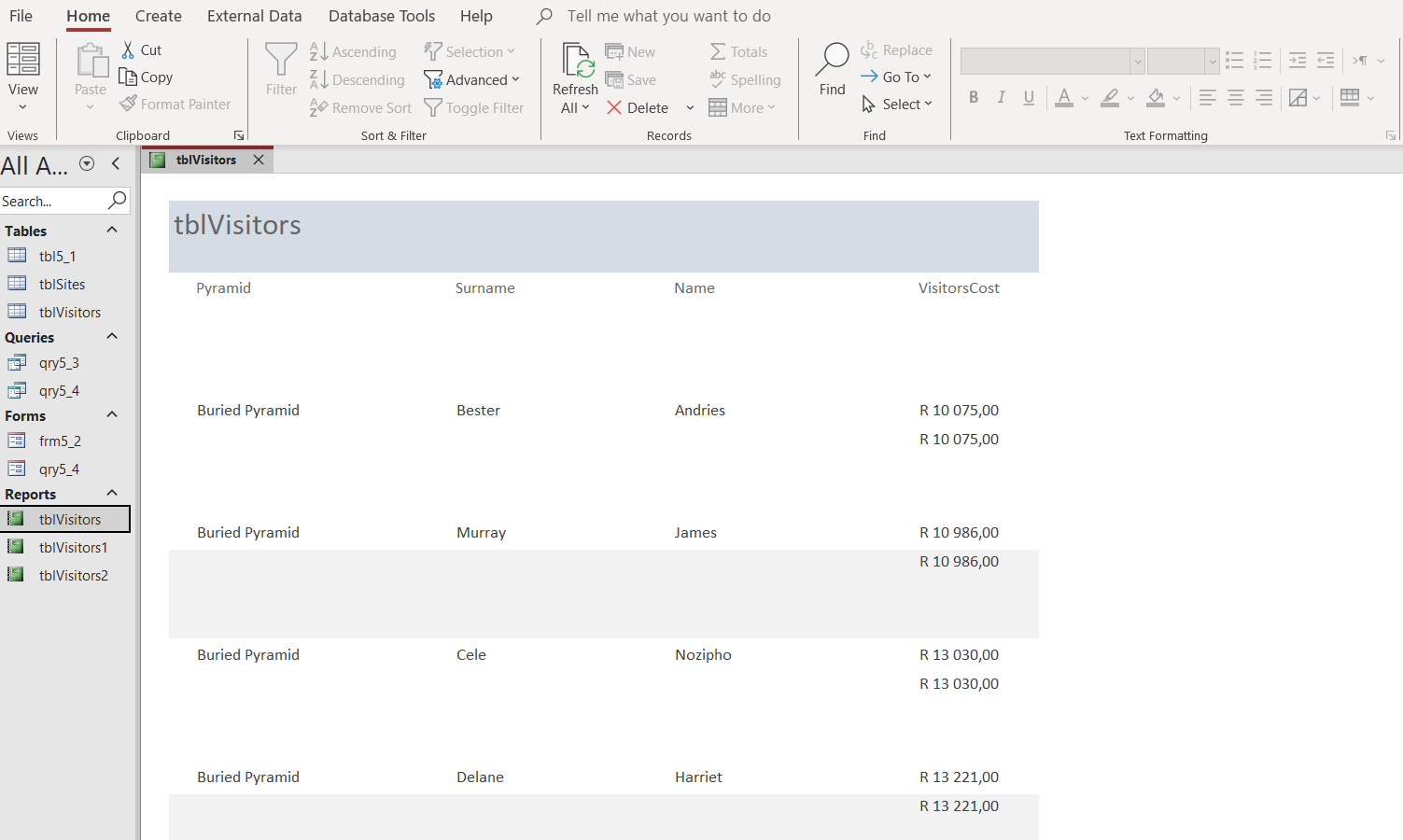
Report: A formatted output of data (like a printed document), often based on a query. It is useful for summarizing or presenting data.